Google Analytics 4: the 5 most common mistakes
Avoid common GA4 mistakes: use GTM preview mode, send currency values, avoid double tracking and set up goals correctly.

At boostU, we have been working on the migration from Universal Analytics to Google Analytics 4 for some time. Unfortunately, we still see Google Analytics 4 setups that do not fully meet best practices. Therefore, we have collected the 5 most common mistakes and explain how you can solve them in your setup.
1.Always include the "debug_mode" parameter
In Google Analytics 4, there are 3 ways to activate and use the debug view:
- With the debugger Chrome extension
- The preview mode of Google Tag Manager
- Sending a debug mode parameter with every event
The last method is the least ideal and is therefore best not applied. Why? Every device will appear in your debug view list in Google Analytics 4. This makes debugging difficult and you will have trouble finding your own device in that list.
What is the solution? Use the preview mode of Google Tag Manager. When you have enabled the preview and debug mode in GTM, the DebugView in GA4 is automatically enabled. Setting this as an extra field and parameter is therefore unnecessary.
2. Missing a currency value
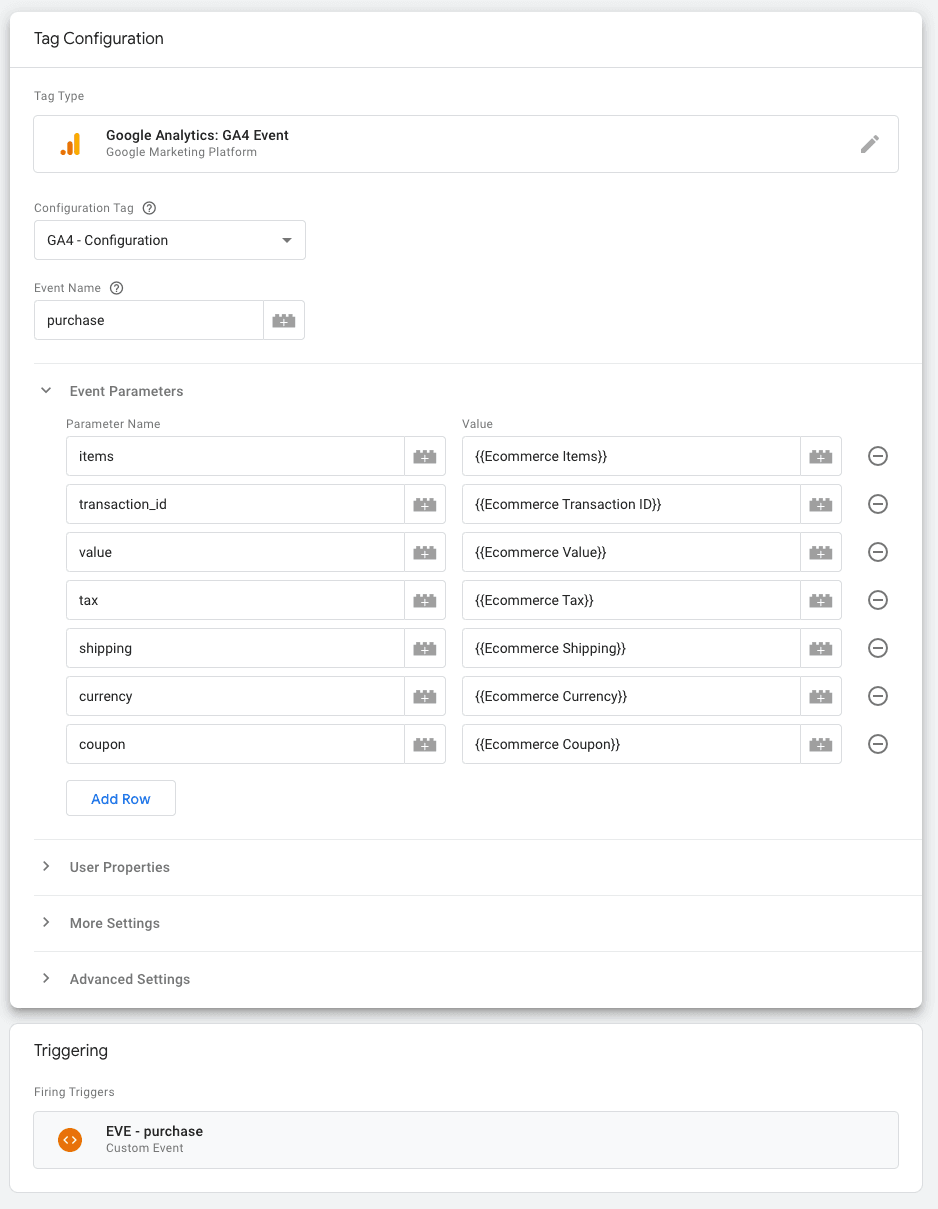
In the old Universal Analytics, it was not necessary to send this parameter. In Google Analytics 4, it is mandatory. If you don"t do this, not all e-commerce reports will be available to you.
So make sure you include the currency parameter in your GA4 event tag (within Google Tag Manager).
3. Using the "create event" function when not needed
This mistake often occurs with GA4 beginners. It may seem logical to first send an event with Google Tag Manager or GTAG and then create it in GA4 with "create event," but that is not the intention. The end result is that you count events twice. You get one event from GTM/GTAG and then the same event from the "create event" function.
If you send custom events to GA4, they will eventually automatically appear in your reports. So you don"t need to register/create them in the interface.
4. Not setting data retention correctly
There are two types of reporting possible within Google Analytics 4: standard reports and "exploration."
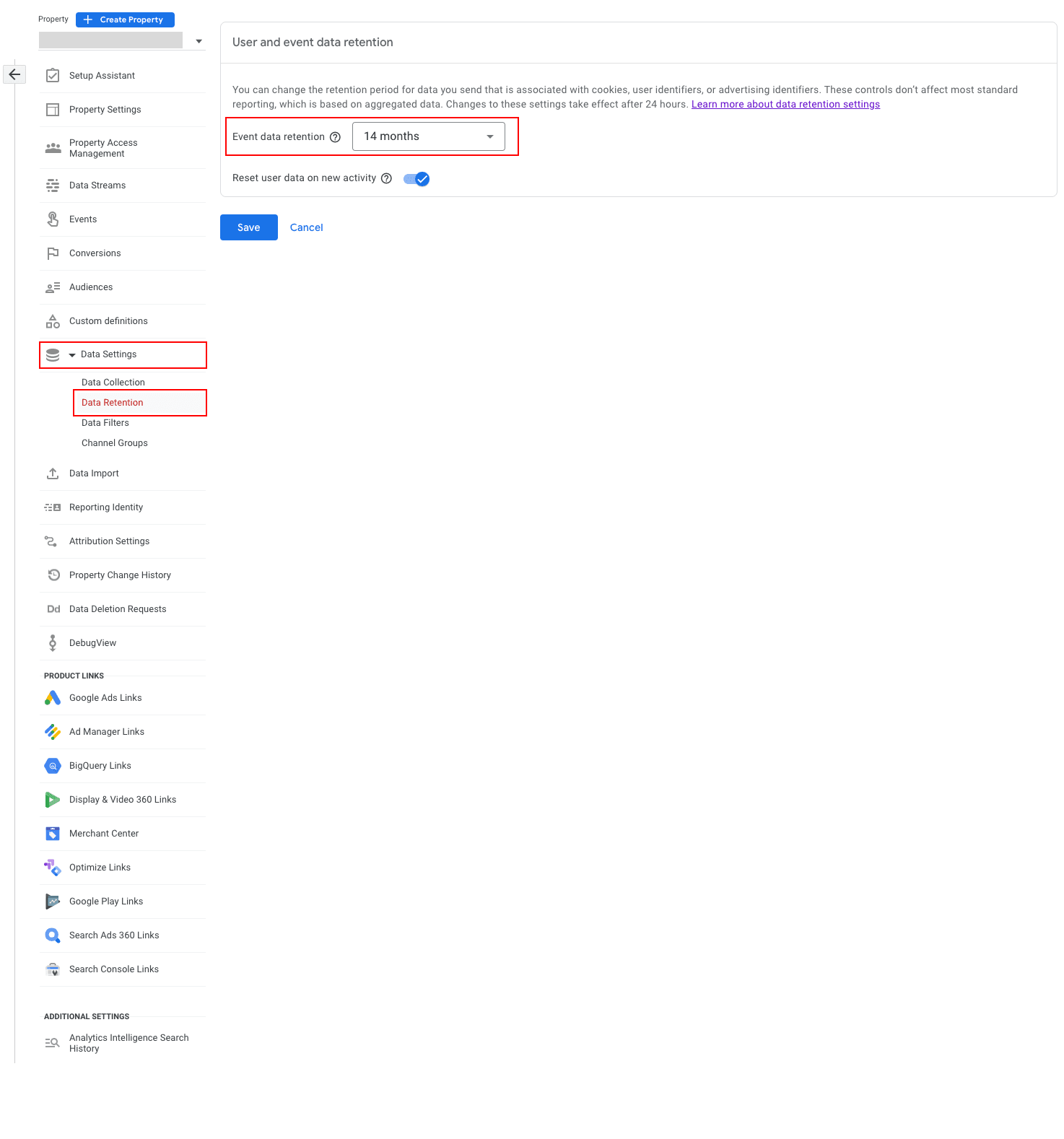
The data in standard reports does not expire, but in the "exploration section" this is different. Want to build a report in this section with data from the last 6 months? That is not possible unless you extend the data retention period from 2 months (default setting) to 14 months (maximum).
How do you do that? Go to admin within your GA4 -> "Data settings" > "Retention" and change to 14 months. Keep in mind that this change does not apply to historical data. Your 14 months start when you change this setting.
5. Not filtering internal traffic from the data
This tip has to do with data quality in your Google Analytics 4 property. If you have colleagues who like to sit on their own website, it is important to filter this traffic out of the data. You can set this up using "internal traffic filters" and your office IP address.
By avoiding these five mistakes and applying the right solutions, you can ensure an accurate and reliable Google Analytics 4 setup that meets best practices. This will help you obtain valuable insights and effectively measure and understand your website"s performance.